INFO: Refer to https://docs.requarks.io/ on how to use the wiki.
If you have not made an account yet, please do so on the login page. You can either use a username and password or login with Discord (it is secure (using Oauth2.0), we do NOT see your Discord password)
After you have verified your email using the email sent from us ([email protected]), you will have permission to edit and create new pages.
¶ Create New Page
In order to create a new page, click the New Page button, located in the top right corner of the page.
The following dialog will appear:
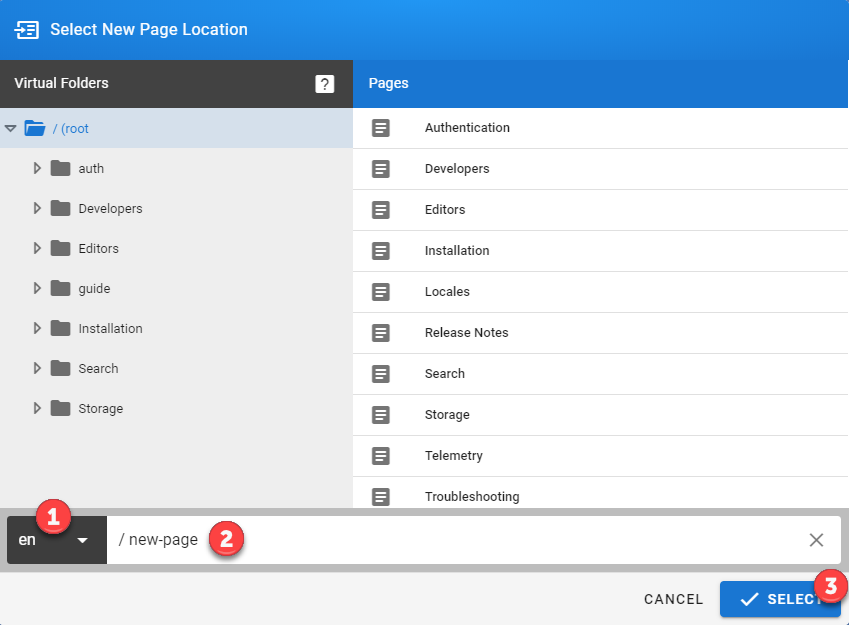
- Select the language to create the page for (the current locale is selected by default).
- Enter the full path to the page you want to create.
- Should always be lowercase!
- Should be in the format of
/<manufacturer>/\<model>/\<guide>; egzebra/mc18/pinouts- The path should contain no spaces (use dashes instead), no periods, and consist of URL-safe characters.
- DO NOT put a trailing slash.
- You don't need to create folders. Enter the full path you want to create and folders will be created automatically. For example, enter
zebra/mc18/pinoutsto automatically create the zebra and mc18 subfolders if they do not exist.
- Click Select to proceed.
¶ Select an Editor
When creating a new page, you'll be prompted with the following dialog:
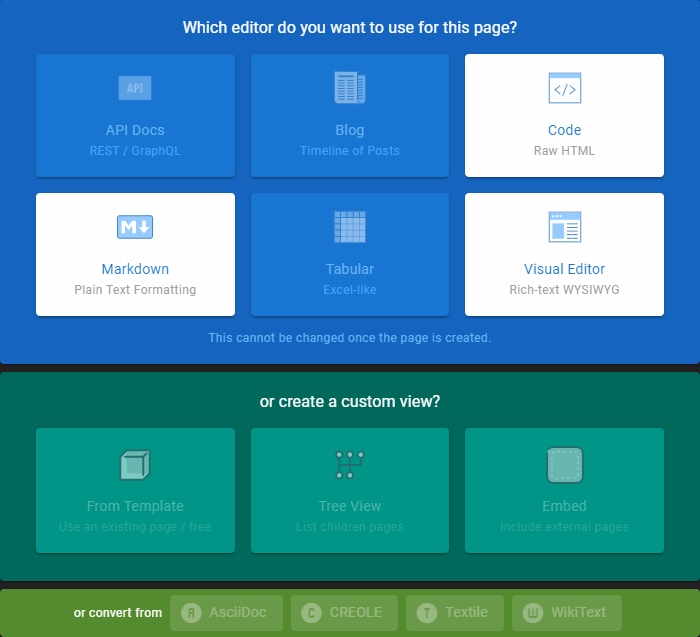
Wiki.js offers various editors depending on the type of content you want to write or simply user preference. Developers will usually go with the Markdown editor while non-technical users may prefer the Visual Editor.
For a complete list of editors and how to use them, refer to the Editors section in the official Wiki.js docs for more info.
¶ Enter Page Metadata
Upon selecting an editor, you'll be prompted with the Page Metadata dialog:
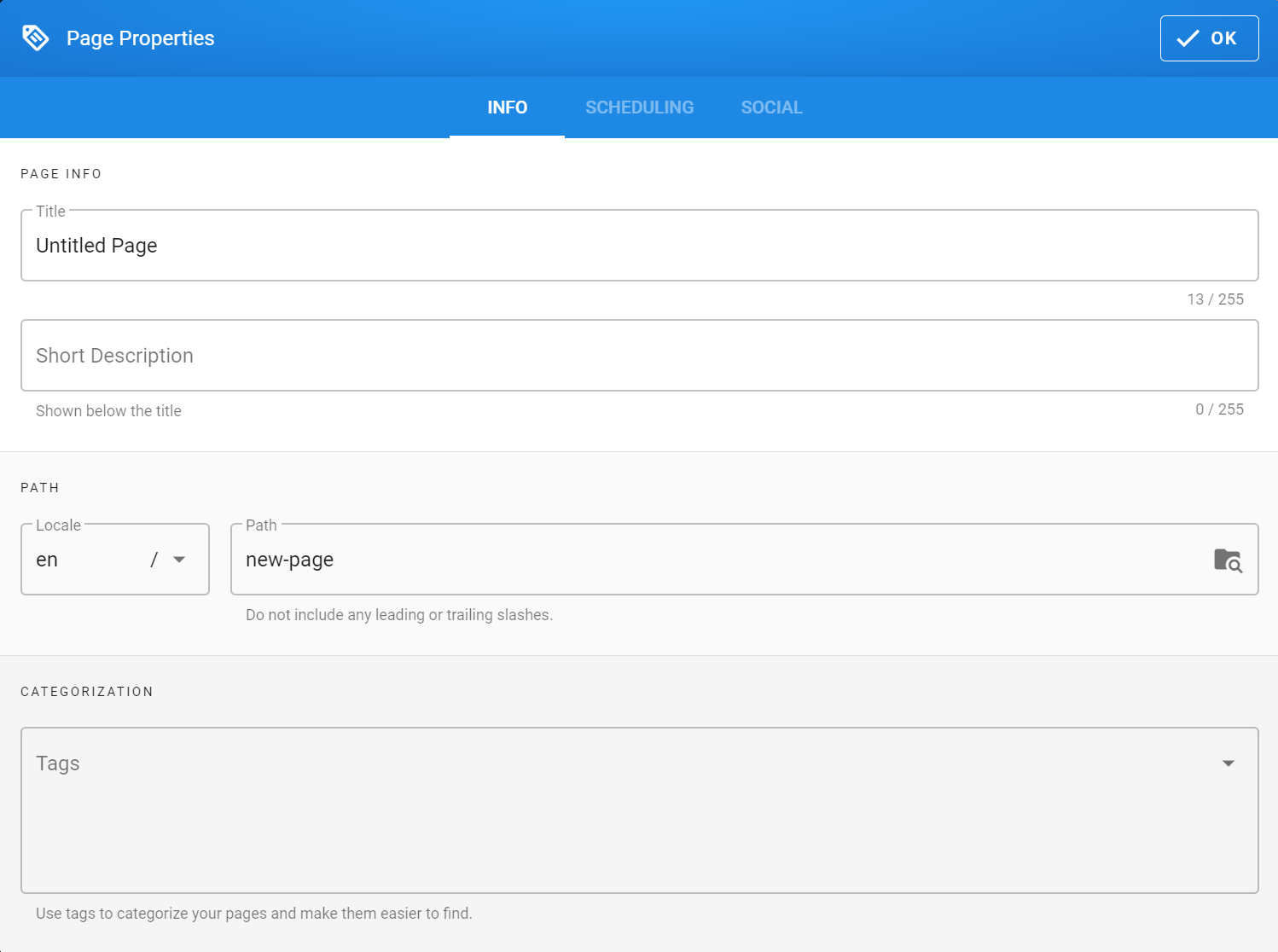
Enter a title, description, and tags then enter the tags for your page (always in lowercase!). These should be short related descriptors, e.g. for the Zebra MC18 you would put android, scanner, portable etc. Please also tag your "info dumps" with info dump just so readers know it contains a lot of info.
Finally, click OK to close the dialog and start writing!
You can always return to the Page Metadata dialog later by clicking the Page button, located in the upper-right corner of the page.
¶ Save
Your page is not created until you hit the Create button (located in the upper-right corner of the page). It will be saved and rendered, after which you'll automatically be redirected to the final result. Simply click the edit button to go back to editing the page.